- ✅ 13 Months Long Warranty
- ↩ 30 Days Free Return
- 🚚 48 Hours Fast Shipping
- ✈️ Fast Delivery(except Brazil 45-90days)


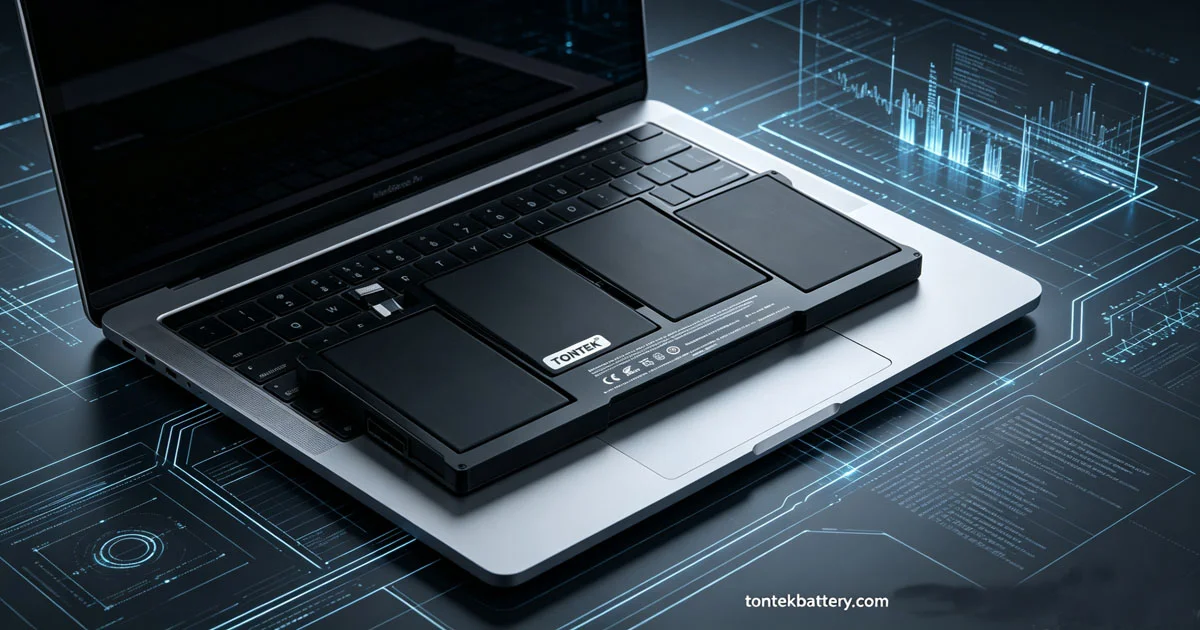
Many laptop users experience rapid battery degradation within 1–2 years, facing shorter screen-on time, unexpected shutdowns, or even battery swelling. Most battery damage is caused by incorrect daily charging habits rather than product quality.
According to Battery University, lithium-ion laptop batteries lose capacity faster under extreme charging states, high temperatures, and full-cycle discharge behaviors. With correct maintenance, a laptop battery can maintain healthy performance for 3–5 years and retain over 80% original capacity. If your old battery is already worn out, consider a reliable replacement like the A1496 Laptop Battery from Tontek Battery, which delivers stable performance and long service life.
1. Avoid Full 100% Charging for Daily Use
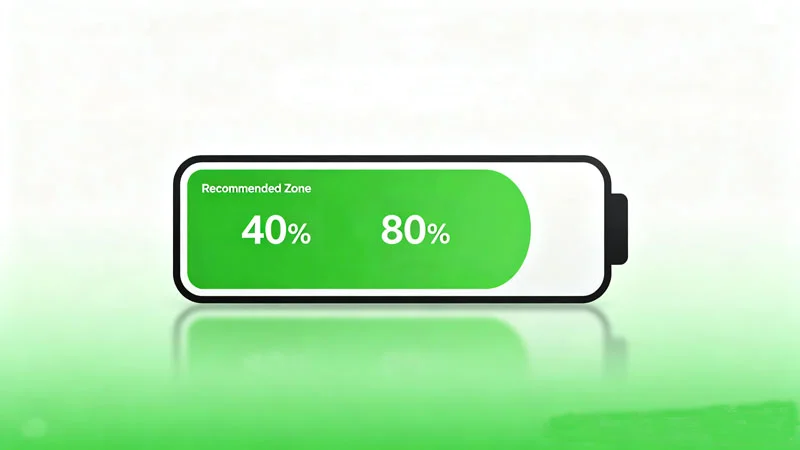
Keeping the battery fully charged at 100% for long periods increases internal chemical pressure and accelerates aging.
Battery University recommends maintaining a charge level between 40%–80% for daily routine use. For long-term storage, 50%–70% charge is the safest state.
Most mainstream brands support customized charging limits:
- Dell: Battery Extender Mode (stop charging at 80%)
- Lenovo: Conservation Mode (60% charge limit)
- HP: Adaptive Battery Optimizer
- Apple Mac: Optimized Battery Charging
2. Never Drain the Battery to 0%
Deep discharge is one of the most harmful behaviors for lithium-ion batteries. Once the voltage drops below the protection threshold, the internal cell activity becomes unstable, causing permanent capacity loss.
It is recommended to charge your laptop when the power drops to 20%–30%.
3. Control Working Temperature
Temperature is the biggest killer of lithium batteries. High temperature speeds up electrolyte decomposition and causes battery swelling.
Avoid:
- Using the laptop on beds, sofas, or blankets (block air vents)
- Gaming or rendering under direct sunlight
- Long-time charging while running heavy tasks
Battery University data shows that batteries working above 35°C will double their aging speed.
4. Update System & Battery Firmware
Brand official firmware optimizes charging logic and temperature protection strategies. Outdated firmware may cause abnormal fast power consumption.
Users can update via:
- Apple macOS System Update
- Dell SupportAssist
- Lenovo Vantage
- HP Smart
5. Regular Battery Calibration (Once Every 2–3 Months)
Calibration helps the system correct power display errors and restore accurate battery health detection.
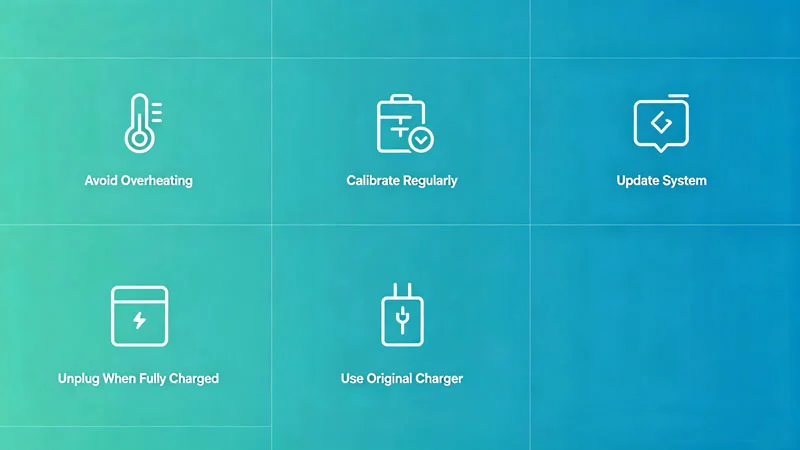
Conclusion
Laptop battery lifespan depends 70% on user habits and 30% on battery quality. Proper maintenance significantly delays aging and reduces replacement frequency. When you need a new replacement battery, shop trusted options at https://tontekbattery.com to enjoy both quality and reliability.
Original Content | tontekbattery.com | Published: May 27, 2026